Prowlarr Integration
Ygégé can be used as a custom indexer for Prowlarr, allowing you to integrate YGG Torrent into your media management stack.
Prerequisites
- Prowlarr installed and running
- Ygégé started and accessible
- The
ygege.ymlfile from the GitHub repository
Installation
1. Locate Prowlarr's AppData Directory
The AppData directory path is displayed in Prowlarr's /system/status page.
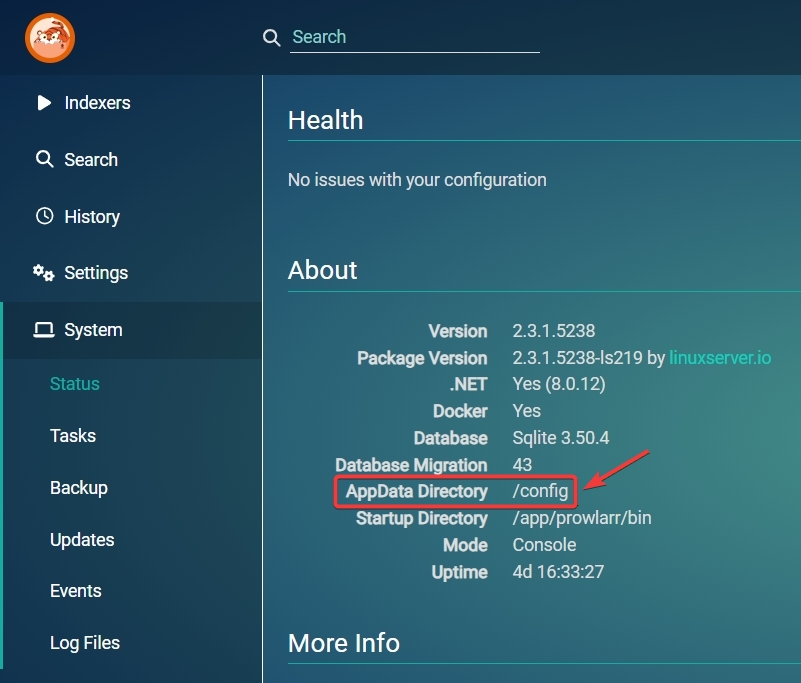
Example paths:
- Linux/Docker:
/configor/data - Windows:
C:\ProgramData\Prowlarr - macOS:
~/.config/Prowlarr
2. Create the Custom Folder
In Prowlarr's AppData directory, navigate to Definitions/ and create a Custom folder if it doesn't exist:
mkdir -p /config/Definitions/Custom
3. Copy the Definition File
Copy the ygege.yml file (French by default, or ygege-en.yml for the English version) from the GitHub repository to the Custom folder:
# Download directly from GitHub
wget https://raw.githubusercontent.com/UwUDev/ygege/master/ygege.yml \
  -O /config/Definitions/Custom/ygege.yml
Or manually:
- Download
ygege.yml - Place it in
{appdata}/Definitions/Custom/
4. Restart Prowlarr
Restart Prowlarr to detect the new indexer:
- Docker
- Systemd
docker restart prowlarr
systemctl restart prowlarr
Indexer Configuration
1. Add the Indexer
- Go to Indexers
- Click the + button to add an indexer
- Search for "Ygégé" in the list
- Click on "Ygégé"
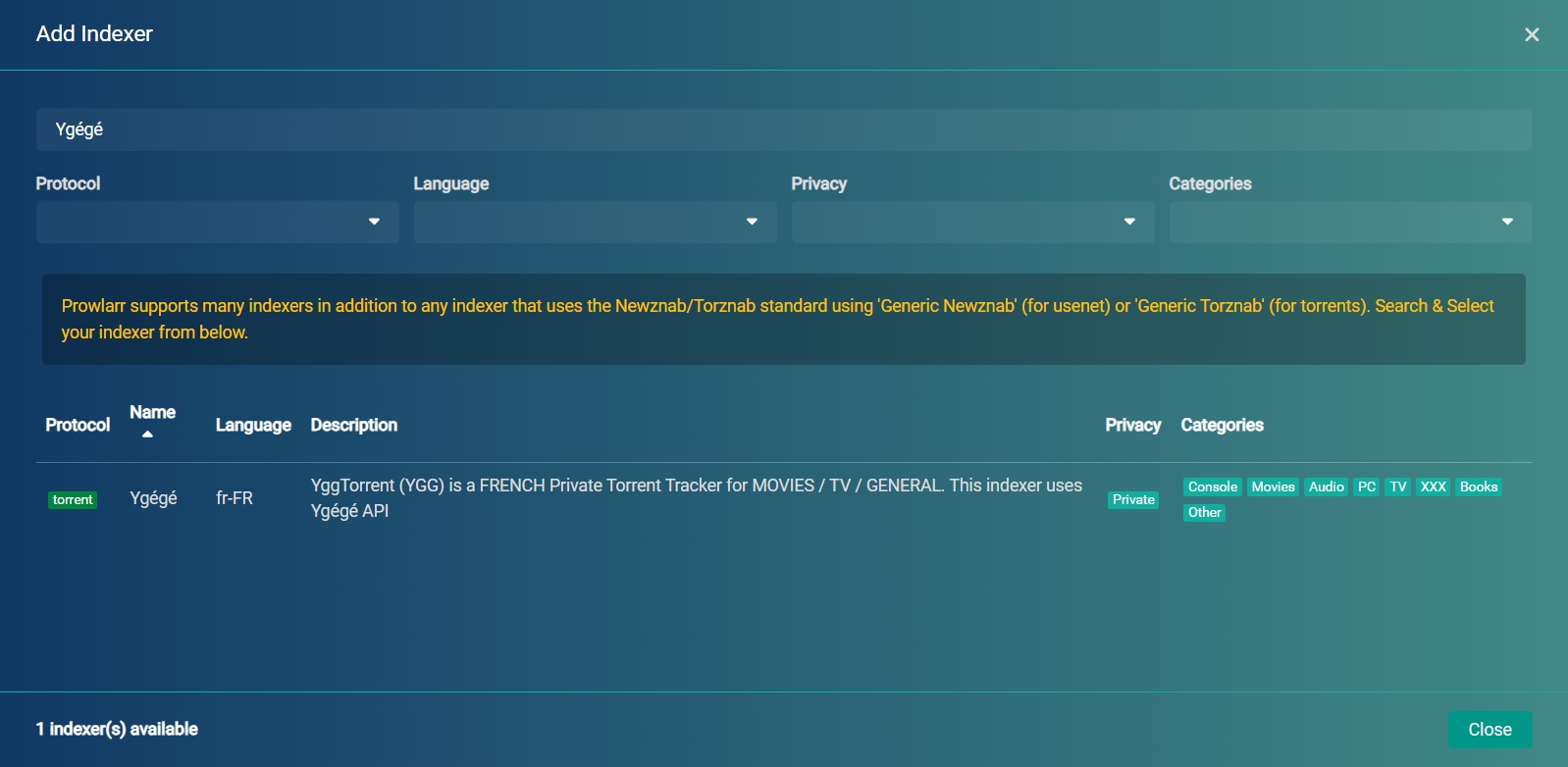
2. Configure Settings
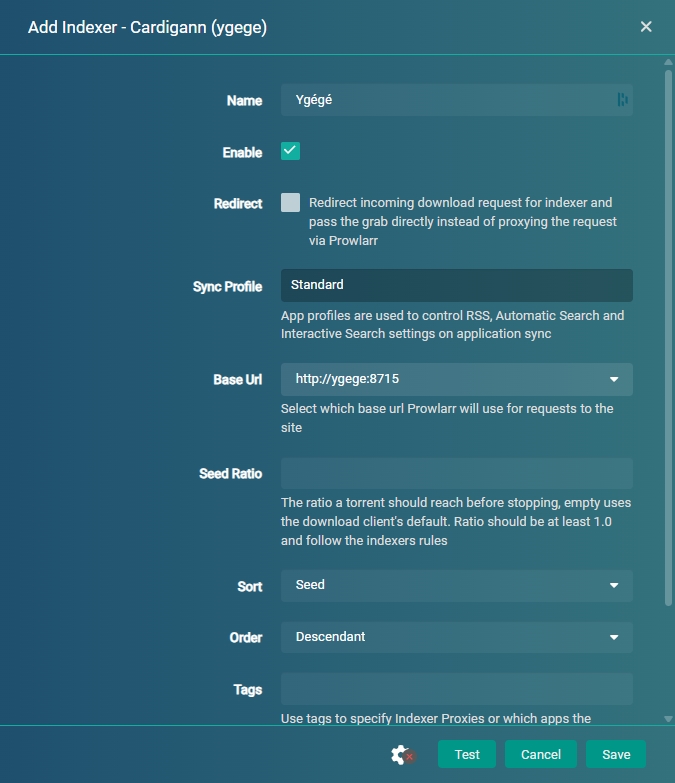
| Parameter | Value | Description |
|---|---|---|
| Name | Ygégé | Indexer name |
| Enable | ✅ | Enable the indexer |
| URL | http://localhost:8715/ | Base URL |
| API Path | /api | API path |
| Categories | All | Categories to index |
Important Base URL
Prowlarr does not allow customizing the base URL. Use:
- Local installation:
http://localhost:8715/ - Docker Compose:
http://ygege:8715/(service name) - Custom DNS:
http://ygege-dns-redirect.local:8715/
3. Docker Compose Configuration
If Prowlarr and Ygégé are in the same compose.yml:
services:
  prowlarr:
    image: lscr.io/linuxserver/prowlarr:latest
    container_name: prowlarr
    # ... prowlarr configuration

  ygege:
    image: uwucode/ygege:latest
    container_name: ygege
    # ... ygege configuration

# They're automatically on the same network
# Use http://ygege:8715/ in Prowlarr
4. Test the Connection
- Click Test in the indexer configuration
- Prowlarr should connect successfully
- Click Save
Usage
Manual Search
- Go to Search in Prowlarr
- Enter your search query
- Ygégé will appear in the results
Synchronization with Sonarr/Radarr
Prowlarr will automatically synchronize the Ygégé indexer with your connected *arr applications.
Supported Categories
Ygégé supports all YGG categories:
| Prowlarr Category | YGG Mapping |
|---|---|
| Movies | Films |
| TV | TV Series |
| Audio | Music |
| PC | Applications |
| XXX | Adult |
| Other | Other |
Troubleshooting
Indexer Doesn't Appear
- Verify that
ygege.ymlis inDefinitions/Custom/ - Restart Prowlarr
- Check Prowlarr logs for errors
Connection Error
- Verify that Ygégé is running:
curl http://localhost:8715/health - Check the URL configured in Prowlarr
- For Docker, verify containers are on the same network
No Results
- Check Ygégé logs:
docker logs ygege - Verify the Nostr relay is accessible:
curl http://localhost:8715/status - Test the API directly:
curl "http://localhost:8715/search?q=test"